
Many Android users encounter apps that are “not Play Protected” when trying to install APKs from outside the Google Play Store. Google Play Protect is a security system that scans apps to protect your device from malware. However, some safe apps, especially gaming apps like Bet735, beta apps, or apps from official websites, may trigger Play Protect warnings.
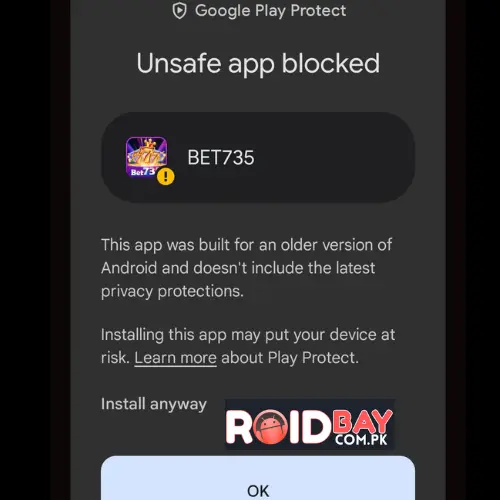
Here’s a complete, detailed guide to safely install these apps.
Understand Play Protect Warnings
When you download an app, you might see messages like:
- “This app isn’t Play Protected”
- “Google hasn’t verified this app for safety”
These warnings are Google’s way of protecting you from malicious apps. It doesn’t always mean the app is unsafe; apps from official sources or verified APK platforms are usually fine.
⚠️ Only proceed if you trust the source of the APK.
Enable Installation from Unknown Sources
Android blocks installations from outside the Play Store by default. To install apps manually, you need to enable installation from unknown sources:
- Open Settings on your Android device.
- Navigate to Apps & notifications → Special app access → Install unknown apps.
- Select the app you’ll use to download the APK (e.g., Chrome, Firefox, or Files).
- Toggle Allow from this source to enable installation.
✅ Tip: Only enable this for apps you trust. You can disable it after installing the APK for better security.
Download the APK from a Trusted Source
The most important step is getting the APK from a trusted and official source. Random websites often host modified or malicious APKs.
Steps:
- Open your browser (like Chrome) or use a file manager app.
- Visit the official website of the app or a trusted APK platform.
- Download the latest APK version compatible with your Android device.
- Check the file size and version against official info to make sure it hasn’t been tampered with.
⚠️ Warning: Avoid websites that claim “cracked apps” or “free paid apps.” These often contain malware.
Install the APK File
Once the APK is downloaded:
- Open the Downloads folder or the app you used to download the APK.
- Tap the APK file to start installation.
- Android will show a confirmation prompt. Tap Install.
🔹 On Android 10 and later, you may need to confirm installation permission for the app that is opening the APK.
How to allow Play Protect to install apps?
Even after enabling installation from unknown sources, Google Play Protect may still warn you about the app.
- You may see: “Google Play Protect found that this app isn’t Play Protected.”
- If you trust the source, tap Install anyway.
If the option isn’t available:
- Open Settings → Google → Play Protect
- Temporarily disable Scan apps with Play Protect
- Install the APK again
- Re-enable Play Protect after installation to keep your device protected
✅ Tip: Only disable Play Protect temporarily for apps you fully trust. Do not leave it off permanently.
Open the App and Verify Permissions
After installation:
- Open the app from your app drawer.
- Grant necessary permissions like storage, camera, or location if the app requests them.
- Test the app to ensure it functions correctly.
💡 Tip: If the app asks for unnecessary permissions, such as SMS access for a gaming app, avoid granting them—this may indicate a suspicious app.
Keep Your Device Safe
Even when installing APKs from trusted sources, it’s important to follow safety measures:
- Keep Play Protect enabled after installation.
- Use a mobile antivirus app for extra protection.
- Regularly update your Android OS and apps to patch security vulnerabilities.
- Only install APKs from official or verified sources.
Bonus Tips for APK Installation
- Check Reviews: Many APK download platforms have user reviews. Check them to confirm the app is safe.
- Verify Hash: Advanced users can verify the APK’s hash (MD5 or SHA256) to ensure it hasn’t been tampered with.
- Avoid Cracked Versions: “Cracked” or modified apps often contain malware or ads that can compromise your device.
- Backup Your Device: Before installing APKs, consider backing up important files in case of issues.
Common Questions About Installing Play Protected Apps
Q: Is it safe to install apps that are not Play Protected?
A: Yes, if you download the app from an official or trusted source. Play Protect warnings don’t always mean the app is malicious.
Q: Can I install these apps on any Android device?
A: Most Android devices support APK installation, but the device should meet the app’s version and storage requirements.
Q: What happens if I ignore the Play Protect warning?
A: If the app is safe, nothing happens. If the APK is malicious, your device could be at risk. Always verify the source first.
Most Asked Question about Play Protection
How to Allow Play Protect to Install Apps?
Normally, Google Play Protect automatically allows safe apps to install from the Google Play Store. If an app is blocked, it means Play Protect believes the app might be unsafe.
To allow the installation:
- Open the Google Play Store on your Android device.
- Tap your profile icon in the top-right corner.
- Select Play Protect.
- If the app appears in warnings, review the details.
- If you trust the app, choose Install anyway or Allow installation.
Only allow apps if they come from a trusted source.
How Do I Turn On Play Protect?
Play Protect usually runs automatically, but you can turn it on manually if it is disabled.
- Open Google Play Store.
- Tap your profile icon in the top-right corner.
- Select Play Protect.
- Tap the Settings icon.
- Turn on:
- Scan apps with Play Protect
- Improve harmful app detection
Once enabled, Google will regularly scan your apps for malware and security risks.
How Do I Unblock an App from Play Protect?
Sometimes Play Protect blocks apps that are not downloaded from the Play Store.
- Open Google Play Store.
- Tap your profile icon → Play Protect.
- Tap Settings.
- Temporarily disable Scan apps with Play Protect.
- Install the app again.
- Turn Play Protect back on after installation.
⚠️ Only unblock apps if you trust the source.
Can Play Protect Remove Viruses?
Yes. Google Play Protect can detect and remove malicious apps from your Android device.
It can:
- Scan installed apps for malware
- Warn you about harmful apps
- Disable suspicious apps automatically
- Remove dangerous applications
However, Play Protect may not detect every virus, so it is still important to download apps only from trusted sources.
How to Install APK on Android Without Play Protect?
If Play Protect blocks an APK file, you can install it manually.
- Open Settings on your phone.
- Go to Google → Play Protect.
- Disable Scan apps with Play Protect temporarily.
- Download the APK file from a trusted website.
- Open the APK file and tap Install.
- After installation, enable Play Protect again.
How to Unblock APK Installation?
Android blocks APK installations from unknown sources by default.
- Open Settings.
- Go to Apps → Special app access.
- Tap Install unknown apps.
- Select the app you used to download the APK (Chrome, Files, etc.).
- Enable Allow from this source.
You can now install APK files.
How to Install an App That Doesn’t Want to Install?
Sometimes apps fail to install due to storage issues, security restrictions, or version conflicts.
Try these solutions:
1. Check Storage Space
- Make sure your phone has enough free storage.
2. Clear Google Play Store Cache
Go to Settings → Apps → Google Play Store → Storage → Clear Cache.
3. Restart Your Phone
- Restarting can fix temporary system issues.
4. Update Android System
- Some apps require a newer Android version.
5. Enable Unknown Sources
- If installing an APK, allow installation from unknown sources.
How to Allow APK Installation on Samsung?
Samsung devices use the same Android security system but the menu layout is slightly different.
Steps for Samsung Phones
- Open Settings.
- Tap Biometrics and Security.
- Select Install Unknown Apps.
- Choose the app you will use to download the APK (Chrome, My Files, etc.).
- Enable Allow from this source.
You can now install APK files on your Samsung device.
Safety Tips for Installing APK Apps
To keep your device secure:
- Only download APK files from trusted websites.
- Avoid modified or cracked apps.
- Keep Play Protect enabled after installation.
- Regularly update your Android system.
- Use antivirus apps if you install APKs frequently.
Conclusion
Installing Play Protected apps on Android is possible and safe if you follow proper precautions. The key steps include:
- Enable installation from unknown sources
- Download APKs from trusted sources
- Bypass Play Protect warnings carefully
- Grant permissions only when necessary
- Keep Play Protect enabled afterward
By following these steps, you can enjoy apps not available on the Google Play Store without compromising your device security.
Note: All the information on this page is from different sources on the internet. We do not recommend installing any game or app outside the Google Play Store. If you want to install any app from third-party sources, do so at your own risk. We are not responsible for any damage or security issues with your phone. This article is only for educational purposes. If you ever try to install any kind of unknown app or game on your phone, first confirm that this is safe for your phone by checking its ratings on different sites like Trustpilot or any other trusted website.


